
Google Docs Estimate Template
Google Docs Estimate Template Download the free Google Docs Estimate Template from Billed that's quick and easy to use
No credit card required. Cancel anytime.
Key Features
Everything you need in a professional estimate template.
Free Google Docs Estimate Templates
Choose a template variation and download in your preferred format.
Create with Billed
Get Your Free Google Docs Estimate Template
An accurate and useful estimate is essential for any business, freelancer, or contractor. But creating one can take a lot of time and effort. That’s why we’ve created the Billed Google Docs Estimate Template.
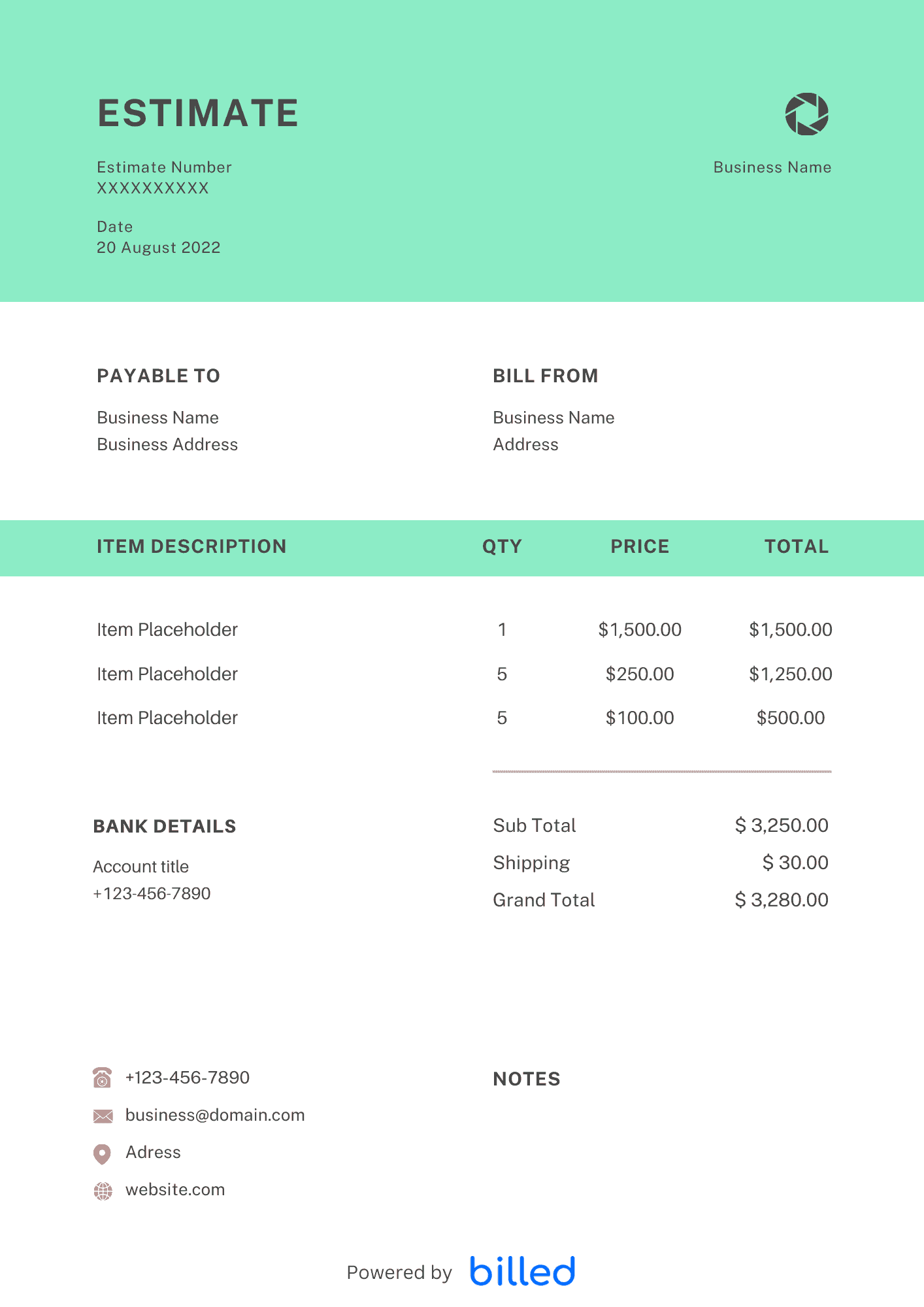
Our free estimate templates make creating professional and accurate estimates in minutes easy. They have all the necessary features, including customizable fields for items, descriptions, quantities, rates, and totals. You can quickly export the document as a PDF for easy sharing and printing.
Why Use Our Estimate Templates?
Using our templates for your estimate sheets in Google Docs offers numerous advantages for your workflow:
Time-Saving:
Our templates are pre-designed and ready to use, saving you time and effort to create estimate sheets from scratch. You can customize the template to fit your needs, eliminating the need to create and format the entire layout.
Professional Appearance:
Our templates are designed with a professional and polished look, helping you create a visually appealing and well-organized estimate sheet. This can leave a positive impression on your clients and enhance your business’s credibility.
Consistency:
By using our templates, you can maintain consistency across all your estimate sheets. This ensures that your branding elements, layout, and formatting remain consistent, creating a cohesive and professional image for your business.
Customizability:
While our templates provide a starting point, they can be customized to suit your requirements. You can modify the sections, labels, and formatting to align with your business’s specific needs and branding.
Ease of Use:
Google Docs is a user-friendly platform, and our templates are designed to be intuitive and easy to work with. You can easily navigate and customize the template to create professional estimate sheets even if you’re not a design expert.
Accessibility:
Google Docs is a cloud-based platform allowing you to access your estimate sheets from anywhere with an internet connection. You can collaborate with team members, share estimates with clients, and make real-time updates.
Using our templates, you can streamline the process of creating estimate sheets, maintain a professional appearance, and save valuable time, ultimately improving your efficiency and enhancing your business’s image.
How to Make a Google Docs Estimate?
Estimates are documents that define the different parameters of a project. It quantifies the costs, materials, and time required to complete a project. Learn how you can successfully create one in Google Docs with the help of the tips that we have provided below.
Develop a Professional Letterhead:
Create a header section with your business’s name, logo, and contact information. This establishes a professional and branded look for your estimate sheet.
Provide Clear Labels:
Use clear and descriptive labels for each section of your estimate sheet, such as “Customer Information,” “Project Details,” “Itemized Costs,” and “Total Estimate.” This helps organize and communicate the information effectively.
Itemize Its Details Properly:
Break down the estimate into specific items or tasks and their related costs. Use a table or bullet points to list each item separately, including a description, quantity, unit price, and subtotal. This makes it easy for the client to understand the breakdown of costs.
Include Your Business’s Accreditations:
If your business has any relevant accreditations, certifications, or licenses, include them in a section on the estimate sheet. This contributes to establishing trust and credibility among prospective customers.
Sign & Send:
After completing all the required details, save the estimate as a PDF file and proceed to send it to your customer. To add a personal touch and signify the official nature of the estimate, include a signature line at the bottom of the estimate sheet. This allows you or a representative from your business to sign the document, further enhancing its authenticity and professionalism.
Following these steps, you can create professional and informative estimate sheets using Google Docs.
Skip the Templates — Create Estimates Online
Why download templates when you can create professional estimates online with Billed? Customize, send, and get paid — all in one place.
No credit card required. Cancel anytime.
How To Create Your Estimate With Billed
Get started in minutes with three simple steps.
Sign Up Free
Create your free Billed account in seconds. No credit card required.
Customize Template
Choose and customize your estimate template with your business details.
Send & Get Paid
Send your professional estimate to clients and get paid faster.
Frequently Asked Questions
Common questions about this estimate template.
Related Templates
Explore more templates for your business.
Related Articles
Learn more about creating professional estimates for your business.
Ready To Create Your Estimate?
Join thousands of businesses using Billed to create professional estimates and get paid faster.
No credit card required. Cancel anytime.